Web Applications using Python and Django
Web application using python and Django
In this post we will Create Web Applications using Python and Django.
When it comes to web development back-ends, there are many alternatives, from PHP, Java and C# to GoLang and Ruby. Python also has many options to implement a powerful web application service. One of the most used web frameworks is Django.
Django provides a full featured web development framework, and automated tools for a straightforward development. In this post we create a full featured basic web applications using Python and Django, with the most common features for any web application:
- Install Python and Django
- Create the base Django Web application project
- Create an application inside the Django project.
- Create the main database and tables for administration
- Run the web application locally
Then, in the next posts we will cover additional topics:
- Create new models for data processing
- Adding your models to the admin interface
- Front-end web development with templates
- Publish and deploy your application in Heroku
Install Python and Django
For this step, you can follow the instructions in the post Install Python and Tools to install the Python language interpreter and the Django package.
If you have installed python in your system, you only need to run the Django package installation using pip:
pip install Django
Create the Base Django Web Application
Django comes with a command line tool to create Django projects from scratch. The main command is django-admin.
django-admin startproject webapp
This command will create a new web application folder named webapp. Then you can change to the folder created:
cd webapp
Inside this folder you will get a basic Django Project structure:
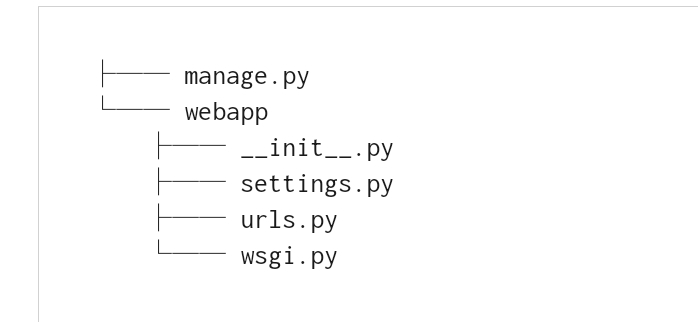
Django Project structure
Additionally to startproject, django-admin supports additional useful commands (the most used are in bold letters):
checkcompilemessagescreatecachetabledbshelldiffsettingsdumpdataflushinspectdbloaddatamakemessagesmakemigrationsmigraterunserversendtestemailshellshowmigrationssqlflushsqlmigratesqlsequenceresetsquashmigrationsstartappstartprojecttesttestserver
Project Management: manage.py
In the base folder there is a file created with name manage.py. This file is the project management script for your application.
python manage.py [command]
There are many commands available for the project management (the most used are in bold letters). You can see all options, when you runpython manage.py(without additional parameters):
[auth]changepasswordcreatesuperuser[contenttypes]remove_stale_contenttypes[django]checkcompilemessagescreatecachetabledbshelldiffsettingsdumpdataflushinspectdbloaddatamakemessagesmakemigrationsmigratesendtestemailshellshowmigrationssqlflushsqlmigratesqlsequenceresetsquashmigrationsstartappstartprojecttesttestserver[sessions]clearsessions[staticfiles]collectstaticfindstaticrunserver
Run the application for the first time
After creating the Django project, you can run the default application with no additional coding. Run the command runserver.
python manage.py runserver
This will start a local webserver at http://localhost:8000/. When you run this command for the first time, you will probably get a warning message:
Performing system checks...System check identified no issues (0 silenced).You have 15 unapplied migration(s). Your project may not work properly until you apply the migrations for app(s): admin, auth, contenttypes, sessions.Run 'python manage.py migrate' to apply them.November 05, 2018 - 22:27:59Django version 2.1.3, using settings 'webapp.settings'Starting development server at http://127.0.0.1:8000/Quit the server with CONTROL-C.
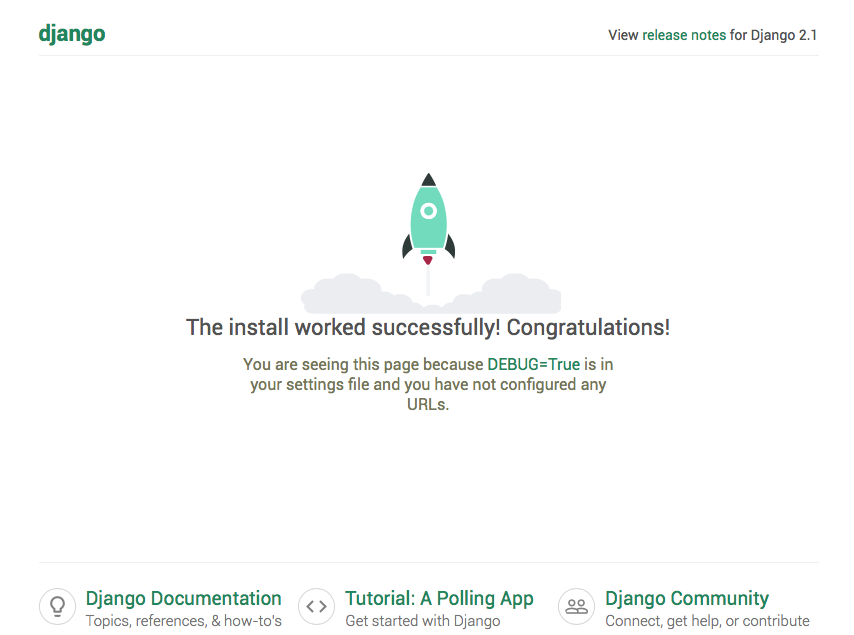
This means you have not created the default database. In the next section you will fix that. Even so, you can run the default application, running until this point, with a default home page:
Creating the default tables for authentication
Python comes with a full featured user management interface (django.contrib.admin). You can create the database and tables needed to support user authentication, running the command migrate.
python manage.py migrate
This will create the SQLite database (db.sqlite3) and the support tables for authentication.
Operations to perform:Apply all migrations: admin, auth, contenttypes, sessionsRunning migrations:Applying contenttypes.0001_initial... OKApplying auth.0001_initial... OKApplying admin.0001_initial... OKApplying admin.0002_logentry_remove_auto_add... OKApplying admin.0003_logentry_add_action_flag_choices... OKApplying contenttypes.0002_remove_content_type_name... OKApplying auth.0002_alter_permission_name_max_length... OKApplying auth.0003_alter_user_email_max_length... OKApplying auth.0004_alter_user_username_opts... OKApplying auth.0005_alter_user_last_login_null... OKApplying auth.0006_require_contenttypes_0002... OKApplying auth.0007_alter_validators_add_error_messages... OKApplying auth.0008_alter_user_username_max_length... OKApplying auth.0009_alter_user_last_name_max_length... OKApplying sessions.0001_initial... OK
Now, you can access the web authentication page after starting the web server again:
python manage.py runserver
And pointing your browser to the Admin interface in http://localhost:8000/admin
Creating the Administrator User (Superuser)
You can run the createsuperuser command to create an initial accout with full privileges:
python manage.py createsuperuser
Username (leave blank to use 'user'): adminEmail address: admin@gmail.comPassword:Password (again):Superuser created successfully.
You need to provide a valid-secure password to avoid being warned about password security.
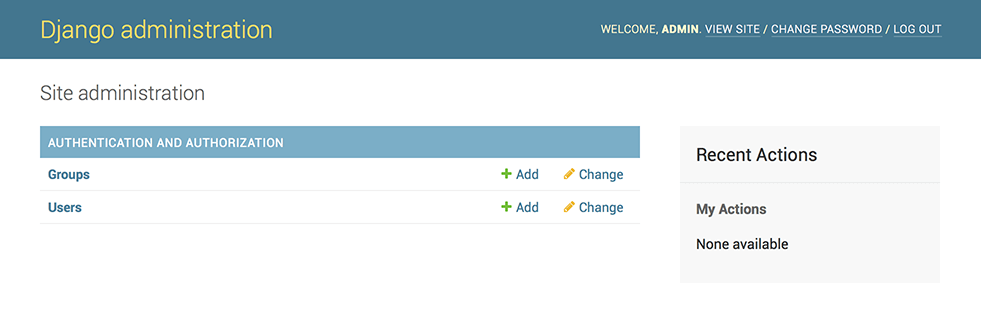
Now, you can use this user to login into the Admin interface, at http://localhost:8000/admin:
Creating an App inside your project
You have created a main Django project (webapp). Now, you can create an application inside your project. Each application is like a separated application module within the same project. The command to create a new application is:
python manage.py startapp {appname}
Where {appname} is the application name (python manage.py startapp example). When you execute this command, a new folder (example) is created along with the project folder (webapp):
> example
> webapp
- manage.py
Inside the application folder, you will view a set of files you need, to configure a Django application:
example/
├── __init__.py
├── admin.py
├── apps.py
├── migrations/
│ └── __init__.py
├── models.py
├── tests.py
└── views.py
Creating Views
Actually, you have only an initial home page and the admin/ interface. You can create your own initial page, adding a view and creating a route.
Create a View
Edit the View file views.py inside your web application folder (example/views.pyin this example) to manage requests for an index page:
from django.shortcuts import render
from django.http import HttpResponse
def index(request):
    return HttpResponse("<h1>Hello World</h1>")
This code uses the HttpResponse function to output a “Hello world” message to the browser client. The render function will be used in the next section.
Now, create a new Route inside the urls.py file of the project folder (webapp/urls.py), to direct request for the root site to your index() function.
from example import views
urlpatterns = [
    path('admin/', admin.site.urls),
    path('', views.index)
]
The first line imports the views.py from the current application folder (example), as views object in the current context.
Then, you can specify a new route path ” (root path) in urlpatterns, mapped to respond with the result of views.index (views.py, function index())
Now, when you run your server (python manage.py runserver) you can view your new home page in http://localhost:8000/.
Hello World
This is a simple page. In the next section you can create full HTML template to show as your home page.
The settings.py file
When you open the file webapp/settings.py, you will find different settings to configure your main project. The most important ones to review are:
- ALLOWED_HOSTS: A list of allowed hosts that can connect to your application. For now, it will keep empty.
- INSTALLED_APPS: A list of imports that will be loaded with your application. In this part, you can add an item for the
PollsConfigobject inexample/apps.py:INSTALLED_APPS = [ ‘django.contrib.admin’, ‘django.contrib.auth’, ‘django.contrib.contenttypes’, ‘django.contrib.sessions’, ‘django.contrib.messages’, ‘django.contrib.staticfiles’, ‘example.apps.ExampleConfig`, ] - MIDDLEWARE: A list of middlewares that run with your application. A middleware is an external layer of the application to process the information received by your application before it’s available to process:
- Sessions
- Authentication
- CSFR token validation
- DATABASES: A list of databases with their connection parameters and configuration. In this project, one SQLite database is used. The most commonly used are
django.db.backends.sqlite3,django.db.backends.postgresql,django.db.backends.mysql, anddjango.db.backends.oracle
Conclusion
In this post we created a Python web application with Django following this commands:
Create the main web server project and start running the service:
- Run
django-admin startproject **webapp** - Execute
cd **webapp**to change to the project folder - Run
python manage.py migrate - Execute
python manage.py createsuperuser - Finally, run
python manage.py runserver
Create an application inside the project:
- Run
python manage.py startapp **example**to create the application folder - Edit the file
**example**/views.pyto create anindex()function - Add in
**webapp**/urls.pya new route path inurlpatterns - Modify
**webapp**/settings.pyto add the applicationPollsConfig (**example**.apps.**Example**Config)


Comments
Post a Comment