Locators in Selenium
Locators are used in selenium WebDriver to find an element on a DOM. Locating elements in Selenium WebDriver is performed with the help of findElement() and findElements() methods provided by WebDriver and WebElement class.
findElement()returns a WebElement object based on a specified search criteria, or ends up throwing an exception if it does not find any element matching the search criteria.findElements()returns a list of WebElements matching the search criteria. If no elements are found, it returns an empty list.
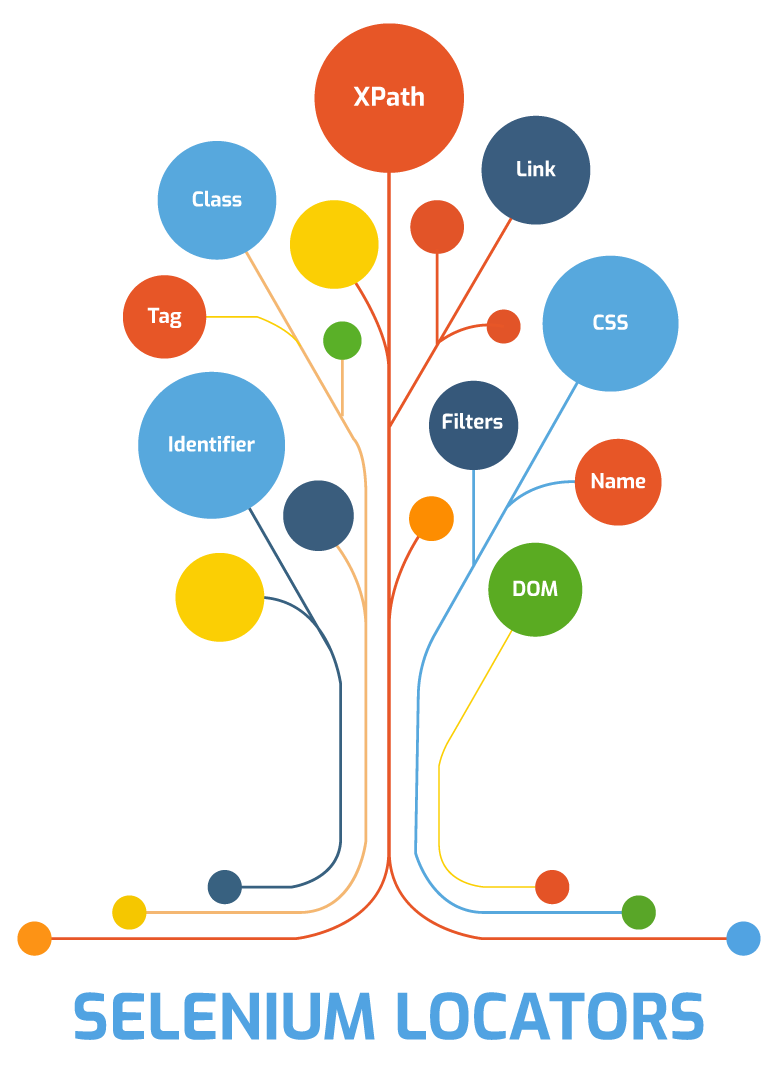
There are 8 types of Locators in Selenium are as follows –
S. No.
Method
Syntax
Locate By Using
1
By ID
driver.findElement(By.id())
ID Attribute
2
By Name
driver.findElement(By.name())
Name Attribute
3
By LinkText
driver.findElement(By.linkText())
Link Attribute
4
By PartialLinkTest
driver.findElement(By.partialLinkTest())
Partial Link
Attribute
5
By Tag Name
driver.findElement(By.tagName())
Tag Name Attribute
6
By Class Name
driver.findElement(By.className())
Class Name Attribute
7
By xPath
driver.findElement(By.xPath())
CSS selector
8
By Css Selector
driver.findElement(By.cssSelector())
xPath query
Element in selenium
- Selenium 4 – Relative Locators
S. No
Method
Syntax
Locate By Using
1
above
driver.find_element(locate_with(By.TAG_NAME, "input").above(passwordField))
Above the element
2
Below
driver.find_element(locate_with(By.TAG_NAME, "input").below(emailAddressField))
Below the element
3
To the Left Of
driver.find_element(locate_with(By.TAG_NAME, "button").to_left_of(submitButton))
To the left of element
4
To the Right Of
driver.find_element(locate_with(By.TAG_NAME, "button"). to_right_of(cancelButton))
To the right of element
Additional element in selenium 4
Examples
Using ID
Each ID is supposed to be unique, couldn’t be duplicated. Which makes IDs a very faster and reliable way to locate elements. With ID attribute value matching the location will be returned. If no element has a matching ID attribute, a “NoSuchElementException” will be raised.
#To Send the username to input field with id "username"WebElement elementUsername = driver.findElement(By.id("username"));#To Send the password to input field with id "password"WebElement elementPassword = driver.findElement(By.id("password"));
All objects on a page are not having ID attribute, it’s not realistic. In some cases developers make it having non-unique IDs on a page or auto-generate the IDs, in both cases it should be avoided.
Using Name
By using name attribute we can find an element on DOM, name attributes are not unique in a page all time. With the Name attribute value matching the location will be returned. If no element has a matching name attribute, a “NoSuchElementException” will be raised.
#To Send the username to input field with name "username"WebElement elementUsername = driver.findElement(By.name("username"));#To Send the password to input field with name "password"WebElement elementPassword = driver.findElement(By.name("password"));
Using Link
With this, you can find elements of “a” tags (Link) with the link names. Use this when you know link text used within an anchor tag.
<a href="link.html">Name of the Link </a>
# Link = “Name of the Link” the text content in the <a> tagWebElement element = driver.findElement(By.linkText("Name of the Link"));
Using XPath
While DOM is the recognized standard for navigation through an HTML element tree, XPath is the standard navigation tool for XML and an HTML document is also an XML document (XHTML). XPath is used everywhere where there is XML. XPath has a fixed structure (syntax). See below –
// tag[@ attribute = ‘value’]
Some possible syntax are as follows –
// tag[@attribute1 = ‘value’ and @attribute2 = ‘value’]// tag[@attribute1 = ‘value’ or @attribute2 = ‘value’]// tag[@attribute1 = ‘value’, contains(text(),’-xxxxx-’)]// tagP[@attribute = ‘value’] // innerTagOfP[@attribute1 = ‘value’ and @attribute2 = ‘value’]
By using following ways, we can select username for above example :
Xpath = //*[@id=’username’]Xpath = //input[@id=’username’]Xpath = //form[@name=’loginForm’]/input[1]Xpath = //*[@name=’loginForm’]/input[1]
- Difference Between Absolute XPath and Relative XPath –
S. No.
Absolute XPath
Relative XPath
1
It uses a Complete path from the Root (HTML) Element to the desire element.
It’s not a complete path from root to Element.
2
If any change is made in HTML code, then this absolute XPath will get disturbed.
If any change is made in HTML code, then this relative XPath will not get disturbed.
3
It is not customized XPath
It is customized type of XPath
4
It starts with /
It starts with //
5
It is not safe
It is safe
6
It identifies the element very fast
It will take little more time in identifying the
element
Difference Between Absolute XPath and Relative XPath
- We can use Inner Text for relative XPath –
Use text(),”xxxx”, contains(text(),“xxxx”), starts-with(“xxxx”) to customize the XPath.
// tag [text( ),”xxxx”]// tag [contains(text( ),”xxxx”)]// tag [starts-with(@id, “msg”) ]
- How to find XPath Dynamic Element ?
Dynamic elements are those elements who change is attribute on every runtime. XPath Axes are used to find the XPath of the such dynamic elements.
- XPath Axes –
XPath Axes are the methods used to find dynamic elements. XPath axes search different nodes in XML document from current context node. XPath’s expression select nodes or list of nodes on the basis of attributes like ID, Name, Class name, etc. from the XML document.
a) Following:
Xpath = //*[@type=’text’]// following :: input
b) Ancestor:
The ancestor axis selects all ancestors’ element (parent, grandparent, …etc.) of the current node.
Xpath = //*[text() = ‘Enterprise Testing’] // ancestor :: div
c) Child:
Selects all children elements of the current node:
Xpath = //*[@id=’java_technologies’]/child::li
d) Preceding:
Select all nodes that come before the current node, as shown in the below screen.
Xpath = .//*[@type = ‘submit’]//preceding::input
e) Following-sibling:
Select the following siblings of the context node. Siblings are at the same level of the current node.
Xpath = //*[@type = ‘submit’]// following-sibling::input
f) Parent:
Selects the parent of the current node
Xpath = //*[@id=’rt-feature’]//parent::div
g) Self:
Selects the current node or ‘self’ means it indicates the node itself.
Xpath = //*[@type = ‘password’]//self::input
h) Descendant:
Selects the descendants of the current node.
Xpath = //*[@id = ‘rt-fearture’]//descendant::a
Using CSS Selector

There is a debate on the performance of CSS Locator and XPath locator. Most of the automation testers believe that using CSS selectors makes the execution of script faster compared to XPath locator. CSS Selector locator is always the best way to locate elements on the page. CSS is always same irrespective of browsers.
Tag [ attribute = “value” ]
In dynamic elements, there is always a part of locator which is fixed. We need to generate the locator using this fixed part.
If fixed part is at starting -> use (^) e.g. input [id^=’XXXXXX’]If fixed part is at mid -> use (*) e.g. input [id*=’XXXXXX’]If fixed part is at end -> use ($) e.g. input [id$=’XXXXXX’]
- Following are some of the mainly used formats of CSS Selectors.
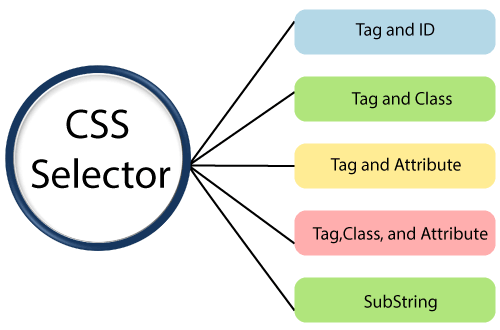
- Tag and ID
- Tag and Class
-
Sub-String Matches
- Starts With (^)
- Ends With ($)
- Contains (*)
-
Tag and Attribute
- Tag, Class, and Attribute
-
Child Elements
- Direct Child
- Sub-child
- nth-child
-
Tag and ID :
Syntax:
css=tag#id
E.g
Css = input#Email
- Tag and Class:
If multiple elements have the same HTML tag and class, then the first one will be recognized.
Syntax:
css=tag.class
E.g
css=input.inputtext
- Tag and Attribute:
If multiple elements have the same HTML tag and attribute, then the first one will be recognized. It acts in the same way of locating elements using CSS selectors with the same tag and class.
Syntax:
css=tag[attribute=value]
E.g.
css = input[name=Email]
- Tag, Class And Attribute:
Syntax:
css=tag.class[attribute=value]
E.g.
css=input.inputtext[name=email]
- SUB-STRING MATCHES:
CSS in Selenium has an interesting feature of allowing partial string matches using ^, $, and *.
Suppose
<input="Employee_ID_001">
a) Starts with (^): To select the element, we would use ^ which means ‘starts with’
Syntax:
css=<HTML tag><[attribute^=prefix of the string]>
E.g.
css=input[id^='Em']
b) Ends with ($): To select the element, we would use $ which means ‘ends with’.
Syntax:
css = <HTML tag> <[attribute$=suffix of the string]>
E.g.
css=input[id^=’001’]
c ) Contains (*): To select the element, we would use * which means ‘sub-string’
Syntax:
css=<HTML tag><[attribute*=sub string]>
E.g.
css=input[id*='id']
Or
Css = "input:contains('id')"
- Locating Child Elements(Direct Child):
Syntax:
parentLocator>childLocator
E.g.
CSS Locator: div#buttonDiv>button#‘div#buttonDiv>button’ will first go to div element with id ‘buttonDiv’ and then select its child element – ‘button’
- Locating elements inside other elements (child or sub-child):
Syntax:
parentLocator>locator1 locator2
E.g.
CSS Locator: div#buttonDiv button#‘div#buttonDiv button’ will first go to div element with id ‘buttonDiv’ and then select ‘button’ element inside it (which may be its child or sub child)
- Locating nth Child:
To locate the element within list, we have to use “nth-of-type”
E.g.
css="ul#automation li:nth-of-type(2)"
Similarly, To select the last child element
css="ul#automation li:last-child"


Comments
Post a Comment